The box says "Windows 10 or later, 8 GB RAM, 2 GB VRAM." The software inside will install on that machine. It will also crawl, stutter during a simple brush stroke, and crash the moment a file crosses three hundred megabytes. System requirements printed on a creative software page are the minimum needed to launch the program, not the minimum needed to use it for the work the program exists to do. That gap, between "opens" and "works," is where most of the frustration lives, and it is where a buyer should spend the most attention before handing over a credit card.
Creative software is different from most other categories of software in one important way: its demands scale with the ambition of the file, not with the size of the program. A word processor uses the same resources to edit a one-page memo and a hundred-page report. A 3D renderer, a video editor, or a digital painting app uses wildly different resources depending on how much geometry, how many layers, how much footage, or how dense the canvas happens to be. The spec sheet has no way of knowing what a specific person will throw at the software on a Tuesday afternoon.
The CPU Is Rarely the Bottleneck, Except When It Is
Most modern creative applications lean on the graphics card for the heavy lifting, which has led to a widespread assumption that the CPU matters less than it used to. That holds for rendering and for real-time canvas work, where the GPU does the drawing. It falls apart in three places: simulation, compression, and anything that involves the word "bake."
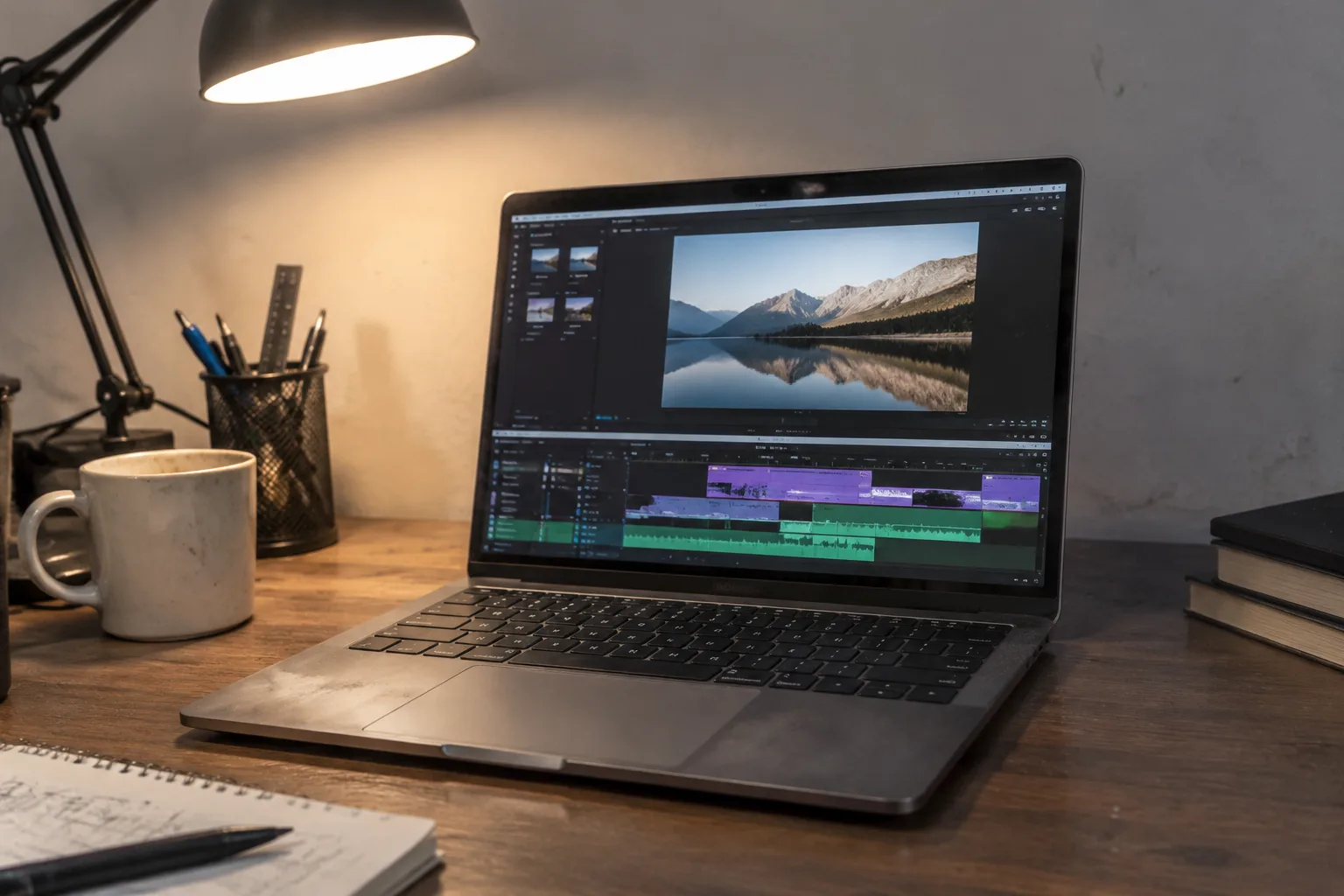
A machine with a strong GPU and a weak CPU will preview a 3D scene smoothly and then take forty minutes to export a short animation. A video editor with a modest processor will play back a 4K timeline without trouble, then stall for an hour when asked to encode the final file. The pattern is consistent enough to be a rule: the GPU governs how the work feels while being made, and the CPU governs how long the work takes to become a finished file. Software vendors rarely split the spec sheet this way, but a buyer should split it mentally.
There is a secondary issue with CPU generations. Some creative packages quietly drop support for older instruction sets, which means a processor from six or seven years ago can be technically compatible and functionally hobbled. The version number on the box does not reveal this. Manufacturer forums do, usually in a thread titled something like "why is my export so slow," and reading three or four of those is worth more than the spec sheet.
VRAM Is the Number That Actually Bites
The "2 GB VRAM" on a spec sheet is the figure at which the software will open a new blank project. It is not the figure at which it will open a project with forty layers, a high-resolution brush engine, and a reference image or two. When VRAM runs out, the software does not politely warn; it either drops to a software fallback that runs at a fraction of the speed, or it crashes and takes unsaved work with it.
For digital painting, a 4K canvas with many layers can absorb several gigabytes of VRAM before the file itself is even large. For video editing, a timeline of 4K footage with color correction and effects stacked on each clip can push past eight gigabytes without much effort. For 3D work, the texture budget alone can swallow the entire card. A useful rule of thumb: take the recommended VRAM figure, double it, and treat that as the realistic floor for a machine expected to last three years.
Laptop graphics complicate this further. Many mobile GPUs share memory with the system RAM, which the spec sheet describes as "integrated" or "shared" graphics. Some creative software refuses to use these entirely, falling back to CPU rendering without saying so. The result is a machine that meets every printed requirement and performs like a machine from a decade earlier.
The Display Panel Is Part of the Toolchain
Creative work is made for a screen, and the screen is the one piece of hardware the software cannot compensate for. A machine with a fast CPU and a generous GPU paired to a panel with poor color accuracy will produce files that look wrong everywhere else. The spec sheet rarely mentions this at all, because the display is usually considered a separate purchase, but for a laptop it is baked in.
Two panel numbers matter more than the rest: color gamut coverage and bit depth. A panel covering most of the sRGB gamut is adequate for web work; a panel covering a wide gamut such as DCI-P3 is necessary for print or video color grading. Bit depth controls how smoothly gradients render, which matters for anything involving skies, skin tones, or fog. Neither figure appears on the standard requirements list, and both influence the final output more than an extra four gigabytes of RAM ever will.
Storage Speed Beats Storage Size
The printed requirement usually says something like "10 GB available space," which refers to the installation footprint. The working files are another matter. A single layered painting file can run to hundreds of megabytes. A video project with proxies can run to hundreds of gigabytes. A 3D scene with textures can exceed a terabyte without the artist noticing until the drive is full.
More important than capacity is the type of drive. Creative software reads and writes to scratch disks constantly, and a mechanical drive turns every autosave into a visible pause. A solid-state drive, even a modest one, changes the feel of the work more than most other upgrades. The one exception is the scratch disk for video editing, where two separate SSDs, one for footage and one for cache, prevent the drive from fighting itself during playback.
Peripherals and Ports Get Overlooked Until They Don't
A drawing tablet needs a USB port. A color calibrator needs a USB port. An external drive for project archives needs a fast USB or Thunderbolt port. A second monitor needs a video output. The spec sheet lists none of these, and a thin laptop with two USB-C ports total will require a dock, which introduces its own compatibility questions and its own failure points.
Pen pressure support is a separate matter. Some tablets rely on the operating system's native pen drivers, which vary in quality by a wide margin, and some software has a preferred tablet brand. Checking the software's own compatibility notes, not the tablet's marketing page, avoids the specific misery of a pressure-sensitive pen that registers only as a mouse.
Operating System Version and the Upgrade Tax
"Windows 10 or later" sounds generous until the annual update arrives and the software vendor announces it now requires the latest build. The same applies to macOS, where major version upgrades routinely break older creative packages. A machine sitting one or two OS versions behind the current release is a machine that will be locked out of the next software update, and possibly the one after that.
This matters more for creative software than for most categories because the files are the asset. An artist with ten years of layered project files has a vested interest in a machine that can still open them. Checking the vendor's stated support window, typically two or three major OS versions back, is a reasonable proxy for how long a given machine will remain useful.
The Trial Period Is the Only Real Benchmark
Every major creative package offers a trial, usually seven to thirty days. The single most useful thing a buyer can do before committing to hardware is to install the trial on the machine in question and open a real project, not the sample file. Import the actual footage. Open the actual layered painting. Load the actual 3D scene. Watch what the machine does when the file gets heavy, because that moment is the one the spec sheet was never describing.
The task manager, open on a second monitor, tells the rest of the story. Watching which component pins to one hundred percent during a heavy operation reveals the actual bottleneck, and that bottleneck is the upgrade priority. A machine that runs out of VRAM first needs a different graphics card, not more RAM. A machine that runs out of CPU first needs a different processor, not a faster drive. The trial period converts a guessing game into a diagnosis.
What the Refund Window Is Really For
Most retailers allow a return within fourteen to thirty days, and most software vendors offer a refund within a similar window. The two windows overlap, which means a buyer can install the software, run the real project, discover the machine is inadequate, and return both within the same fortnight. That overlap is the single most valuable protection in the entire purchase, and it disappears the moment the machine is kept past the deadline.
The practical move is to schedule the trial installation for the first day the hardware arrives, run the heaviest realistic workload on day two, and make the keep-or-return decision by day ten. A machine that passes that test will last; a machine that struggles on day two will struggle more in year two, when the files have grown and the software has updated. The spec sheet is a starting point. The trial, run against real work inside the return window, is the actual answer.