Permission screens have become the fine print of modern life. A weather app asks for the microphone. A flashlight wants contact lists. A simple game requests location, and the request arrives in a small dialog box designed to be dismissed in half a second. Most people tap "Allow" and move on, because the alternative is a lecture in legalese and the phone works either way.
The audit described here is not a paranoid exercise. It takes about twenty minutes, it happens entirely inside the phone's settings, and it produces a visible change: a shorter list of apps that can see where a person is, hear what is said near the phone, or read the address book. The work is mostly mechanical. The judgment calls are what make it worth doing by hand.
Start with the permission dashboard, not the app list
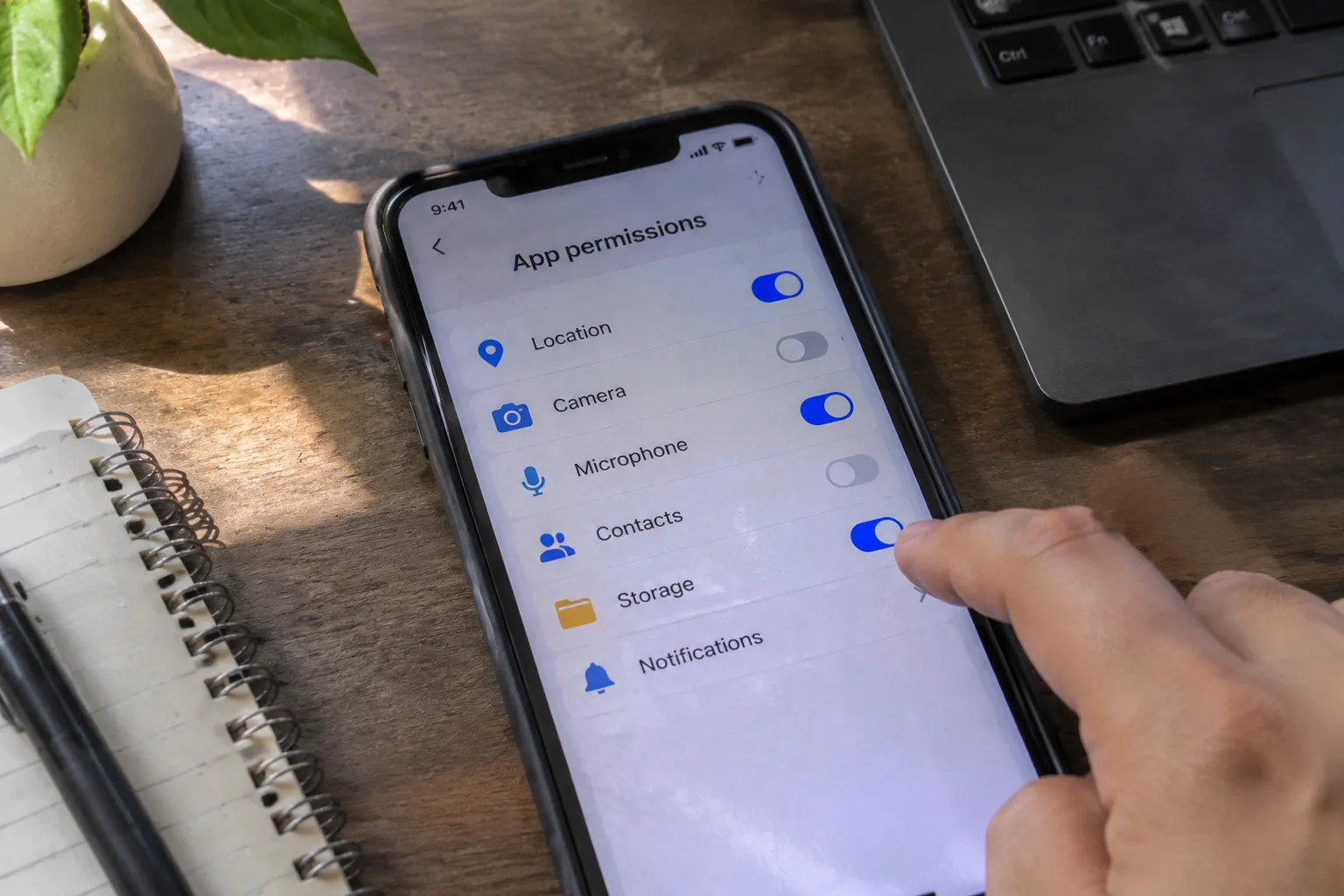
Both iOS and Android now organize privacy settings by data type rather than by app. On iOS the path runs through Settings, then Privacy & Security. On Android it sits under Settings, then Security and privacy, then Permission manager. This layout matters because it flips the usual question. Instead of opening an app and asking what it wants, the dashboard shows every app that currently holds a given permission, lined up in one place.
That inversion is the whole audit in miniature. A person scrolling through the location list sees the weather app, the maps app, the rideshare app, and then something unexpected, a photo editor or a shopping app that has no business knowing the neighborhood. The surprise is the point. Nobody remembers granting that permission three years ago during a checkout flow.
The dashboard also exposes the difference between "while using" and "always." An app set to always-on location can ping a cell tower in the background at any hour. An app set to while-using only sees location when it is open on screen. That single toggle changes the practical risk far more than most people realize.
The four permissions that carry the most weight
Not every permission deserves equal scrutiny. A calendar app reading the calendar is doing its job. The high-value targets are the ones that reveal things a person cannot easily change afterward: location, microphone, camera, and contacts.
Location is the most sensitive because it is continuous and because it correlates with everything else. A pattern of home and work locations, gathered over months, describes a life in uncomfortable detail. Microphone access is narrower but more alarming in principle, since a live audio feed is hard to audit and easy to abuse. Camera access matters for similar reasons, though most phones now show an indicator dot when either is active.
Contacts are the quiet one. A single contact permission hands over names, phone numbers, and often email addresses for everyone in the address book, including people who never installed the app and never consented to anything. That is the permission most people forget they granted, and the one most worth revoking on sight for any app that does not obviously need it.
Reading an app's request for what it actually is
When an app asks for a permission, the dialog usually comes with a one-line justification. Those lines are written by the app's marketing team, and they tend to be generous. "To improve the experience" is not a reason. "To show nearby stores" is a reason, and it can be checked against whether the app has any business showing nearby stores.
A useful test: imagine the app's core function, then ask whether the permission is load-bearing for that function. A navigation app cannot work without location. A messaging app cannot send photos without camera or photo library access. A puzzle game can do everything it promises with zero permissions, which makes any request from it suspicious by default.
There is a middle category too, apps that ask for a permission to enable a secondary feature. A banking app might want camera access for check deposit. That is legitimate, and it is also optional. Denying the permission usually just disables the feature, and the app keeps working. The dialog rarely says this, but it is almost always true.
The difference between one-time, while-using, and background access
Modern mobile operating systems offer graduated levels of access, and most people leave them at the default. The defaults tend to be the most permissive option the app can get away with. Changing them takes a few taps and produces a large change in exposure.
For location, the menu typically offers precise versus approximate, and always versus while-using. Approximate location is enough for weather, local news, and most store finders. Precise location is for navigation and rideshare. Always-on is for almost nothing. A fitness tracker that logs a run needs location only while the run is happening, not at 2 a.m. on a Tuesday.
For camera and microphone, iOS and Android both allow one-time grants that expire when the app closes. That setting is ideal for apps used rarely, a document scanner or a QR reader, since it removes the need to remember to revoke access later. The permission simply lapses.
Photo library access is not all-or-nothing anymore
Photo permissions used to be a blunt instrument: an app either saw the entire library or saw nothing. Both major platforms now allow limited access, where a person selects specific photos to share and the app sees only those. This is the single most underused setting on a modern phone.
A social app that needs one profile picture does not need the camera roll. A messaging app that sends the occasional snapshot needs the photos a person chooses in the moment, not the entire archive. Switching apps from full library access to limited or selected access closes a door that most people did not know was open.
Background refresh and the permissions hiding behind it
Some of the most consequential access never shows up as a permission prompt. Background app refresh, found in the general settings rather than the privacy menu, lets apps wake up and run code while the phone sits idle. Combined with a location or network permission, it turns a dormant app into a steady trickle of data.
The audit should include this list. Apps that genuinely need to refresh in the background, mail, messaging, calendar, ride alerts, earn their place. Apps that exist to be opened occasionally, shopping, games, streaming, do not. Turning off background refresh for the second group costs nothing and quiets the phone in more ways than one.
There is a related setting on both platforms that limits background location specifically. It is buried, and it is worth finding. An app that has been granted always-on location can often be downgraded to while-using from that screen without hunting through the app's own settings.
A short list worth revoking on principle
Certain permission combinations have no defensible use case for a typical consumer app. A photo filter app that requests contacts. A flashlight that wants location. A wallpaper app that wants the microphone. A discount shopping app that wants always-on location. These are not hypothetical; they show up on real phones, usually because the permission was granted during a hurried install and never revisited.
The rule here is simple: if the permission cannot be explained in one sentence tied to the app's visible function, revoke it. The app will either keep working or it will ask again, and the second ask is a useful signal about how much it actually needs the access.
What happens after a permission is revoked
The common fear is that revoking permissions will break apps. In practice, most apps handle denial gracefully. A maps app without location falls back to a manual address entry. A camera app without photo access still takes pictures and saves them to its own folder. The feature that depended on the permission goes dark; the rest of the app keeps running.
Occasionally an app will nag, showing a banner or a pop-up asking for the permission again. That nagging is itself information. An app that repeatedly demands access it does not visibly need is telling the user something about its business model, and the user is free to act on that information by deleting it.
The quarterly habit that keeps the list short
Permissions drift. New apps get installed, old ones get updated with new requests, and a phone that was clean six months ago slowly accumulates access again. A single audit is a snapshot; the useful version is a recurring one, tied to something already on the calendar, like the start of a new quarter or the day a phone bill arrives.
The recurring version takes five minutes once the first pass is done, because the list is shorter and the surprises are fewer. The dashboard remembers the shape of a person's choices, and each pass reinforces them. Over a year, the phone ends up with a permissions list that reflects actual use rather than the accumulated debris of a hundred hurried taps.
The last thing worth doing is the least glamorous: opening the list of installed apps and deleting the ones that have not been opened in months. An app that is not on the phone cannot request a permission, cannot run in the background, and cannot leak anything. The audit is the maintenance; the deletion is the cure.