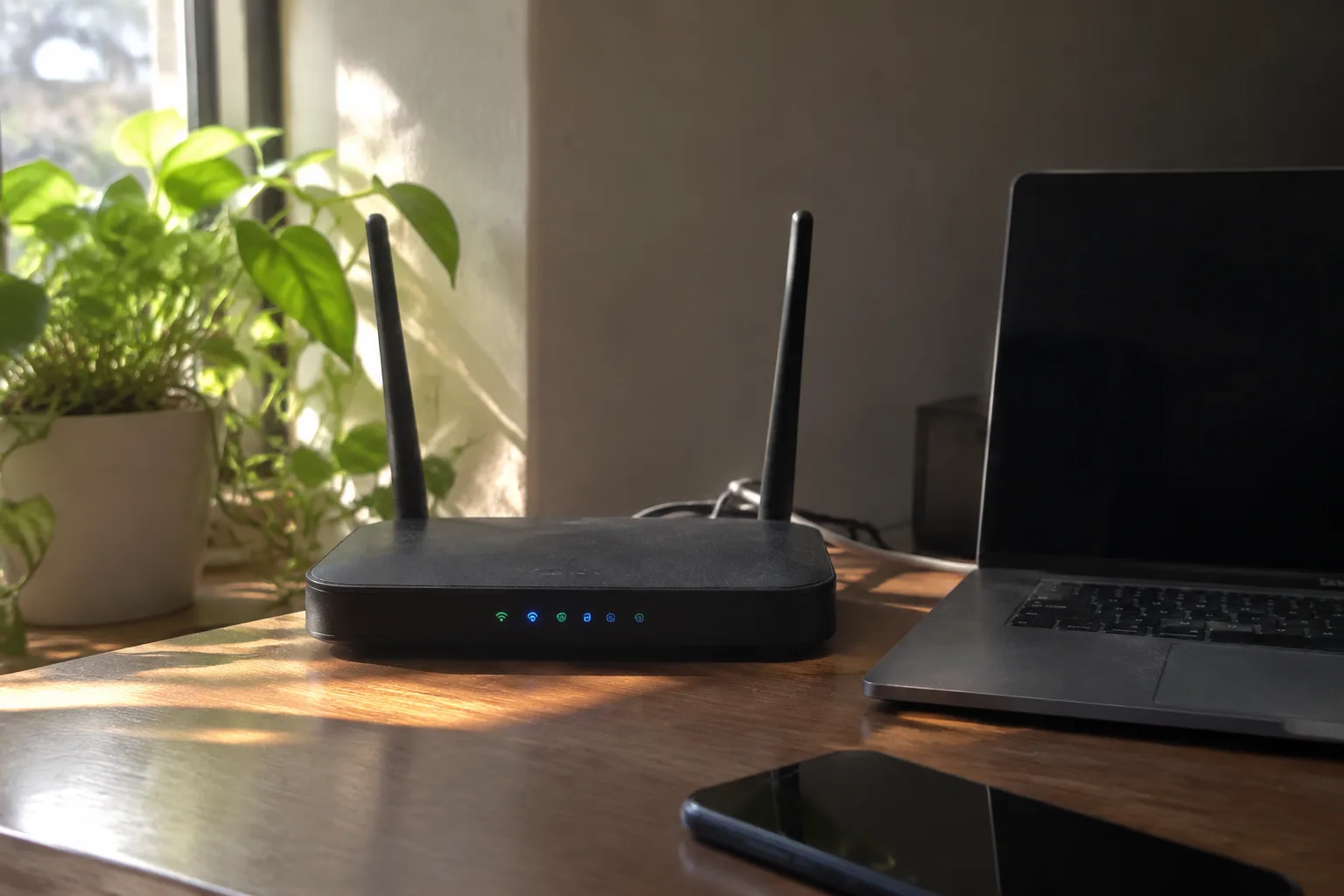
The router sits in a corner of the living room, blinking its small green lights, and most people never think about it again after the installer leaves. That box is the front door to every laptop, phone, thermostat, and baby monitor in the house, and it usually ships with a password printed on a sticker and an app that promises one-tap setup. Setting up a secure home Wi-Fi network is mostly a matter of slowing down for twenty minutes and making a handful of deliberate choices that the manufacturer left out of the quick-start card.
The work divides into three phases: preparing before the router goes live, configuring the wireless settings themselves, and tending the network afterward. Each phase has a short list of decisions, and getting them right at the start saves a family from the familiar cycle of rebooting a router because the smart TV dropped off again.
Before the Router Is Connected to Anything
Unbox the router and resist the urge to plug it in immediately. The first task is administrative: find the default admin credentials, usually printed on a label on the underside, and write them down somewhere physical. The same label carries the default Wi-Fi network name and password, which will be replaced within the hour.
Next, update the router's firmware before exposing it to the internet. Plug the router into the modem with an Ethernet cable, connect a laptop by cable as well, and log into the admin panel using the default credentials. Most panels have a firmware update button buried in the system settings. Running it first closes the known holes that shipped in the factory image, and it removes the awkward scenario of changing a dozen settings only to lose them in a firmware reset.
While in the admin panel, change the administrator password to something long and unique. This password guards the router's control panel, which is the master key to the whole network. It should be different from the Wi-Fi password, because the two serve different jobs and sharing one compromises both. A password manager makes short work of remembering both.
Choosing Between WPA2 and WPA3
In the wireless security settings, the router will offer a menu of encryption options. Older routers list WEP and WPA, both of which are broken and worth ignoring entirely. WPA2 has been the standard for well over a decade and remains solid. WPA3 is the newer protocol and closes some weaknesses in how WPA2 handles passphrases. If the router and every device in the house support WPA3, use it. If a device refuses to connect, drop the network back to WPA2 and move on.
The choice of passphrase matters more than the choice between the two protocols. A Wi-Fi password of sixteen or more characters, mixing words and symbols and avoiding names or addresses, resists the kind of guessing that breaks weak passwords. A long phrase like "copper-lantern-harbor-52" is easier to type than a random string and far stronger than "SmithFamily2019".
Renaming the Network So It Does Not Advertise the Router
The default network name, called the SSID, usually contains the router's make and model. That name tells a passing scanner exactly which device sits inside the house and which known vulnerabilities might apply to it. Rename the network to something that carries no information about the hardware and no personal details. "FBI Surveillance Van" is a joke that ages badly; a neutral label like "Willow House" works fine.
The SSID should also not contain a family surname, a street address, or an apartment number. Those details help a stranger confirm which network belongs to which home, and they serve no purpose for the people who live there.
The Guest Network and the Devices That Need One
Nearly every modern router offers a guest network, a second SSID with its own password that isolates its users from the main network. This feature earns its keep twice over. Visitors get internet access without seeing the printer, the network-attached storage drive, or the family laptops. And the growing pile of smart home gadgets, from light bulbs to robot vacuums, can live on the guest network, where a compromised device cannot reach the computers that hold tax returns and family photos.
The isolation is not perfect on every router, and some guest networks allow clients to see each other. Check the admin panel for a setting usually labeled "client isolation" or "AP isolation" and switch it on. The guest password can be simpler than the main one, since it gets handed out to visitors and changed after parties, but it should still be long enough to resist a casual attempt.
Turning Off WPS and Remote Administration
Two features deserve to be switched off the moment the network is running. The first is WPS, the push-button pairing system that lets a device join by pressing a button or entering an eight-digit PIN. The PIN has a well-documented weakness that allows an attacker within range to recover it in a matter of hours. Most routers let it be disabled in the wireless settings, and doing so costs little, since few devices rely on it anymore.
The second is remote administration, sometimes called cloud access or remote management. This feature lets the router's admin panel be reached from anywhere on the internet, which is convenient for a homeowner troubleshooting from the office and equally convenient for anyone who learns the admin password. Unless a household genuinely needs to manage the router from outside, turn it off and manage the network from inside the house.
Where the Router Sits and What It Broadcasts
Placement is a security question as much as a performance one. A router near a front window broadcasts the signal well into the street and the neighboring apartments. Moving it toward the center of the home keeps the signal inside the walls where it belongs and improves coverage at the same time. A router in a closet or behind a metal cabinet suffers in the other direction, forcing the transmit power higher to reach the far rooms.
Most routers let the owner reduce the transmit power, and a household in a small apartment can often turn it down without losing coverage. Lower power means less signal spilling outside the home, which shrinks the area from which an attacker could work. It is a small adjustment, buried in advanced wireless settings, and it rarely gets touched.
The Firmware Habit That Most Households Skip
Routers are small computers, and like any computer they need updates. Manufacturers release firmware to patch security flaws, and those patches only help if someone installs them. Many routers offer automatic updates in the admin panel. Turn that setting on. For routers without it, a calendar reminder every few months to log in and check for updates is the next best thing.
An unpatched router is one of the quietest risks in a home. It sits there, running year-old software, while the rest of the household's devices get regular updates from their manufacturers. The router is the one device that sees all the traffic, which makes it the one worth keeping current.
A Separate Network for the Work Laptop
Households where someone works from home should consider a third network, or at minimum a wired connection for the work machine. A work laptop often carries employer-mandated security software and connects to a corporate VPN, and keeping it on the same network as a smart plug with outdated firmware creates an unnecessary path between the two. Some routers support multiple guest networks or VLANs for exactly this purpose.
Where the router lacks that feature, an inexpensive second router configured as a separate access point can carve out a dedicated segment. The setup takes an afternoon and pays off in a cleaner separation between the devices that hold work data and the devices that stream cartoons.
What to Check When the Network Is Running
Once the network is live, log into the admin panel and look at the list of connected devices. Every router shows this list, usually with a name or a MAC address for each client. Walk through the house and identify each one. A device nobody recognizes deserves investigation, whether it belongs to a neighbor who guessed the old password or a gadget that was forgotten after a move.
Save the router's configuration to a file once everything is set up. Most admin panels offer a backup option that exports the settings. If the router is ever reset after a power surge or a failed firmware update, the backup restores the whole configuration in a minute instead of an evening of re-entering passwords and network names.
The Default Credentials on the Sticker
The single most common failure in home network security is a router still running the admin password printed on its label. That sticker is visible to anyone who has ever held the router, including a technician, a former roommate, or a delivery worker who saw it during a move. Changing it takes two minutes and closes the widest door in the house.
A secure home network is not a product to buy but a set of small decisions made once and revisited occasionally. The router in the corner will keep blinking its green lights either way. Whether those lights represent a locked door or an open one depends entirely on the twenty minutes someone spent in the admin panel on the day it was installed.