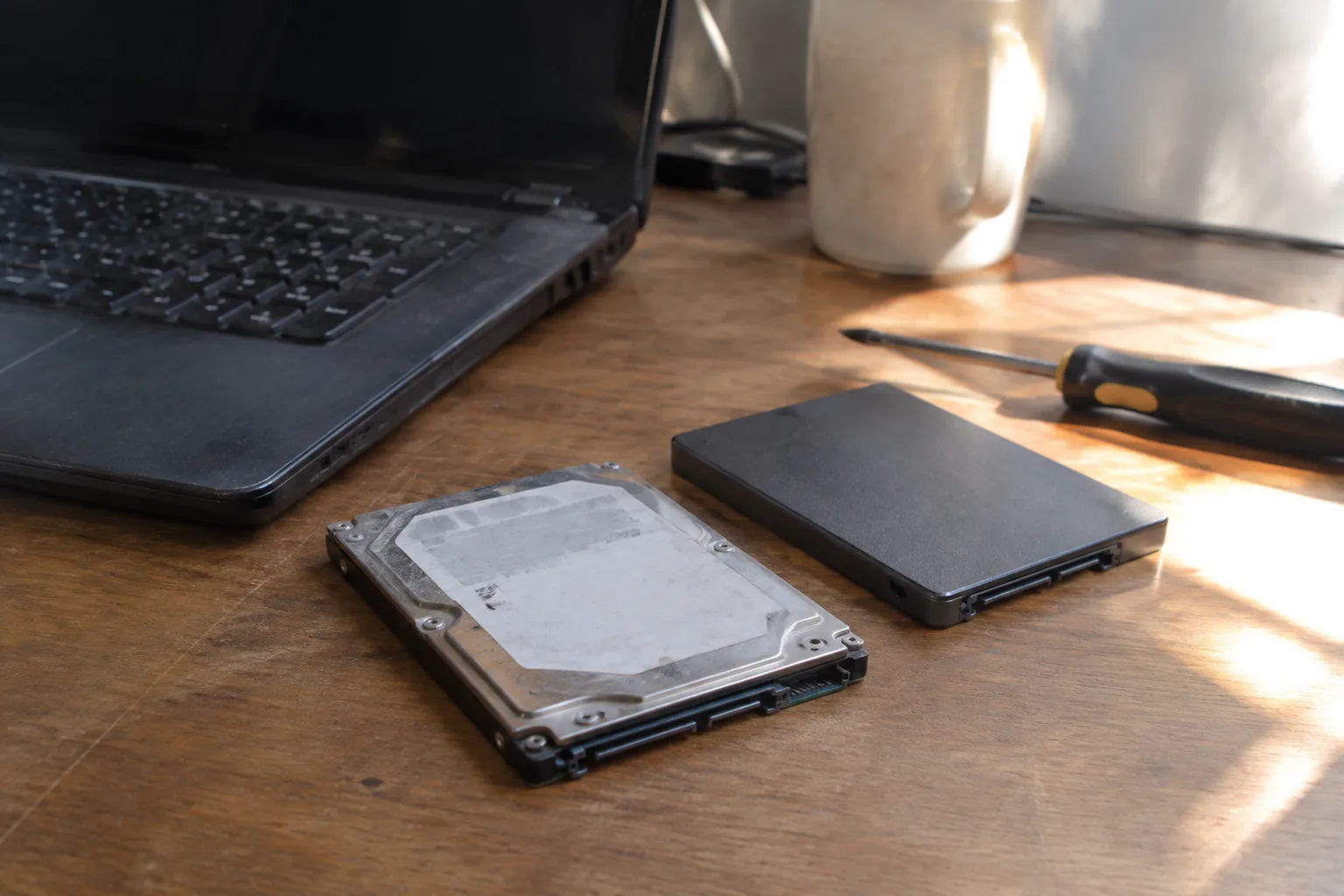
A 2.5-inch SATA solid-state drive that holds a terabyte now sells for somewhere between fifty and eighty dollars. A laptop bought new in 2024 with a spinning hard drive inside probably cost its owner six hundred. Those two numbers sit awkwardly next to each other, which is why so many people open the case, see the old platter drive, and wonder whether the upgrade is worth the trouble. The answer is usually yes, and the cost is usually smaller than expected, but the accounting has more lines than the sticker price suggests.
The parts list first. A SATA SSD in the 500 GB to 1 TB range runs roughly forty to ninety dollars depending on brand and speed class. The drive is the cheap part. The surprise comes from everything around it: the cable if the laptop uses a caddy, the adapter if the machine is slim, the cloning software if the free options fail, and the Saturday afternoon spent reinstalling an operating system that decided it would rather not boot from unfamiliar hardware.
The Drive Itself and What the Spec Sheet Hides
Consumer SATA SSDs cluster around two performance bands. The budget tier reads at roughly 500 MB/s and writes at 450. The better tier pushes sequential reads toward 550 and sustains writes longer before the cache empties. Neither figure is the number that matters most in daily use. Random read performance at small block sizes is what makes a laptop feel quick when opening a browser, switching tabs, waking from sleep. A cheap SSD still beats a hard drive on that metric by an order of magnitude, which is why the forty-dollar drive often delivers the same felt improvement as the eighty-dollar one.
The spec that catches people is endurance, written as TBW, terabytes written. A 500 GB budget drive might carry a 250 TBW rating. That sounds low until the arithmetic lands: writing 50 GB a day for a decade does not reach it. For a normal laptop owner, endurance is a marketing number, not a practical ceiling.
When the Laptop Has No Room for a Second Drive
Most laptops with a factory hard drive have exactly one bay. The old drive comes out, the new one goes in, and the data has to travel some other way. That is where the hidden costs begin. An external USB enclosure for the old drive runs fifteen to twenty-five dollars and doubles as the migration tool: put the SSD in the enclosure, clone the old drive to it, swap the two, and the laptop boots with everything intact. The enclosure then becomes a portable drive holding the old platter, which is a decent consolation prize.
Cloning software is the second line item. Free options exist and work often enough, but the failure mode is ugly: a clone that completes, boots, and then throws driver errors because the partition table came across slightly wrong. Paid utilities cost twenty to fifty dollars and handle the alignment and bootloader details more reliably. A clean operating system install costs nothing but time, and for a machine that has accumulated five years of software, the clean install is often the better path anyway.
The Physical Constraints That Decide the Whole Job
Drive thickness matters. Most 2.5-inch SSDs are 7 mm tall; many old hard drives are 9.5 mm. The thinner drive fits where the thicker one did, usually with a spacer or a rubber rail kit that costs a few dollars and sometimes ships in the box. Some slim laptops take only 7 mm drives and use a caddy with a connector that has to be transferred from the old drive. Losing that caddy means buying a replacement, and replacement caddies for specific laptop models can run thirty dollars or more because they are proprietary plastic with a proprietary connector.
Then there is the machine that cannot be opened without destroying something. Glued lids, hidden screws under rubber feet, batteries that must be disconnected before anything else. A laptop with a service manual and a removable bottom panel is a twenty-minute job. A laptop with adhesive and clips is an hour of careful prying and a real chance of cracking a bezel. That risk has a dollar value, and it is the reason some people hand the machine to a shop.
What a Repair Shop Charges for the Same Swap
Labor for a drive swap and OS migration typically runs sixty to one hundred fifty dollars, and the shop supplies the drive at retail or slightly above. A full turnkey upgrade, parts and labor and data transfer, commonly lands between one hundred fifty and two hundred fifty dollars. That is still less than a new laptop, but it changes the calculus for a machine that is already five years old and showing its age in other ways. Spending two hundred on a laptop worth three hundred is a decision that deserves a hard look at the rest of the hardware: the battery health, the RAM soldered to the board, the screen that has developed a flicker.
The Case Where the Upgrade Cannot Happen at All
Plenty of laptops sold in the last several years have no 2.5-inch bay. They take an M.2 drive, often a short one, sometimes soldered storage that cannot be replaced. Before buying anything, the model number goes into a search engine alongside the word teardown, and the answer appears in a video or a service manual. A machine with an empty M.2 slot is the easiest upgrade of all: no cables, no caddy, one screw. A machine with soldered storage is a dead end, and the money earmarked for an SSD is better spent on an external drive for files.
This is the part of the cost that never appears on a receipt: the hour spent confirming what the laptop actually contains. It is the cheapest step and the one most often skipped, and skipping it is how people end up with a drive that does not fit a slot that does not exist.
The Performance Change Measured in Ordinary Tasks
A hard drive takes roughly ten to twenty seconds to become usable after a cold boot on an older machine, with the desktop appearing but the disk still grinding for another minute. An SSD cuts the wait to a few seconds and eliminates the grinding entirely. Application launches drop from several seconds to under one. File searches that used to spin for half a minute return in a moment. The improvement is not subtle and it does not fade after the novelty wears off, because the bottleneck was mechanical and the replacement has no moving parts.
The secondary benefit is physical. No spinning platter means no vibration, no faint whine, no heat. A laptop that used to warm a lap on a long document now runs cooler and quieter, and battery life gains a modest amount because the drive is no longer drawing power to keep a motor spinning. These gains are small individually and add up to a machine that feels a generation newer than its age suggests.
The Old Drive's Second Life and the Data Question
The retired hard drive holds the original data, which makes it a backup whether or not anyone planned for one. Put it in an enclosure and it becomes an external drive for photos, archived projects, the folder of files that never gets opened but never gets deleted either. A spinning drive in a drawer is a liability; a spinning drive in an enclosure plugged in once a month is a cheap insurance policy.
Before any of that, the data has to survive the migration. Cloning preserves everything but carries the risk of copying a corrupted file system onto fresh hardware. A manual backup to an external drive costs nothing beyond the drive most people already own, and it turns the upgrade into a two-step process with a safety net. The people who skip the backup are the ones who discover, mid-clone, that the old drive had been failing quietly for months.
The Total, Added Up Honestly
For a do-it-yourself upgrade on a laptop with an accessible bay, the realistic total is sixty to one hundred twenty dollars: the drive, an enclosure, maybe a caddy or spacer, and a Saturday morning. For a shop job, add another hundred. For a machine with an M.2 slot, the total drops to the price of the drive and twenty minutes. The number that matters is the comparison: a new laptop with comparable specs costs several hundred dollars more, and the old machine with a fresh SSD will feel closer to new than its age suggests.
The upgrade pays for itself in a currency that does not show up in a bank account. It is the difference between a laptop that gets opened reluctantly and one that gets used. A five-year-old machine with a new SSD boots before the coffee finishes brewing, and the person using it stops planning its replacement for another two years. That deferral is the real return, and it is worth more than the drive ever costs.