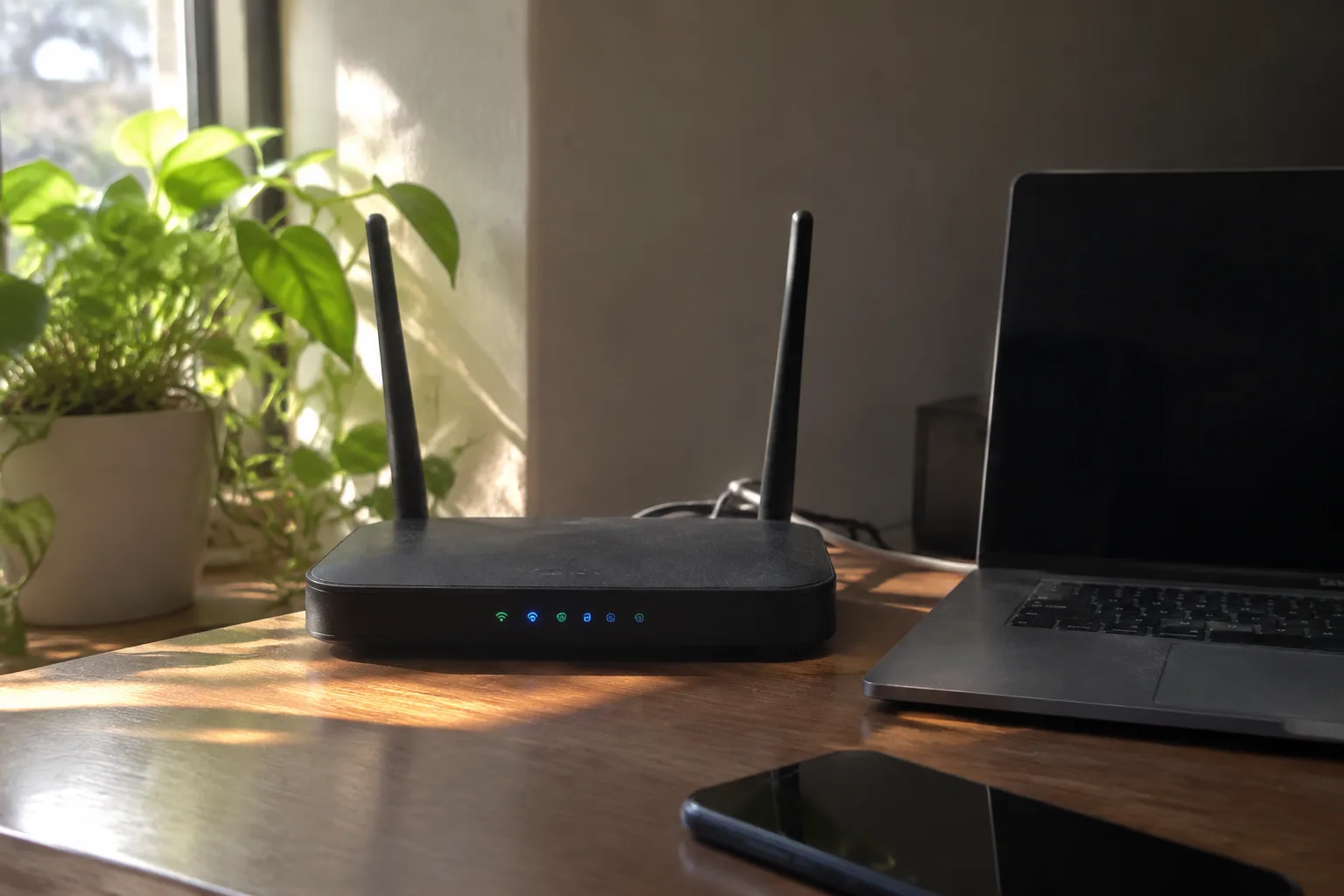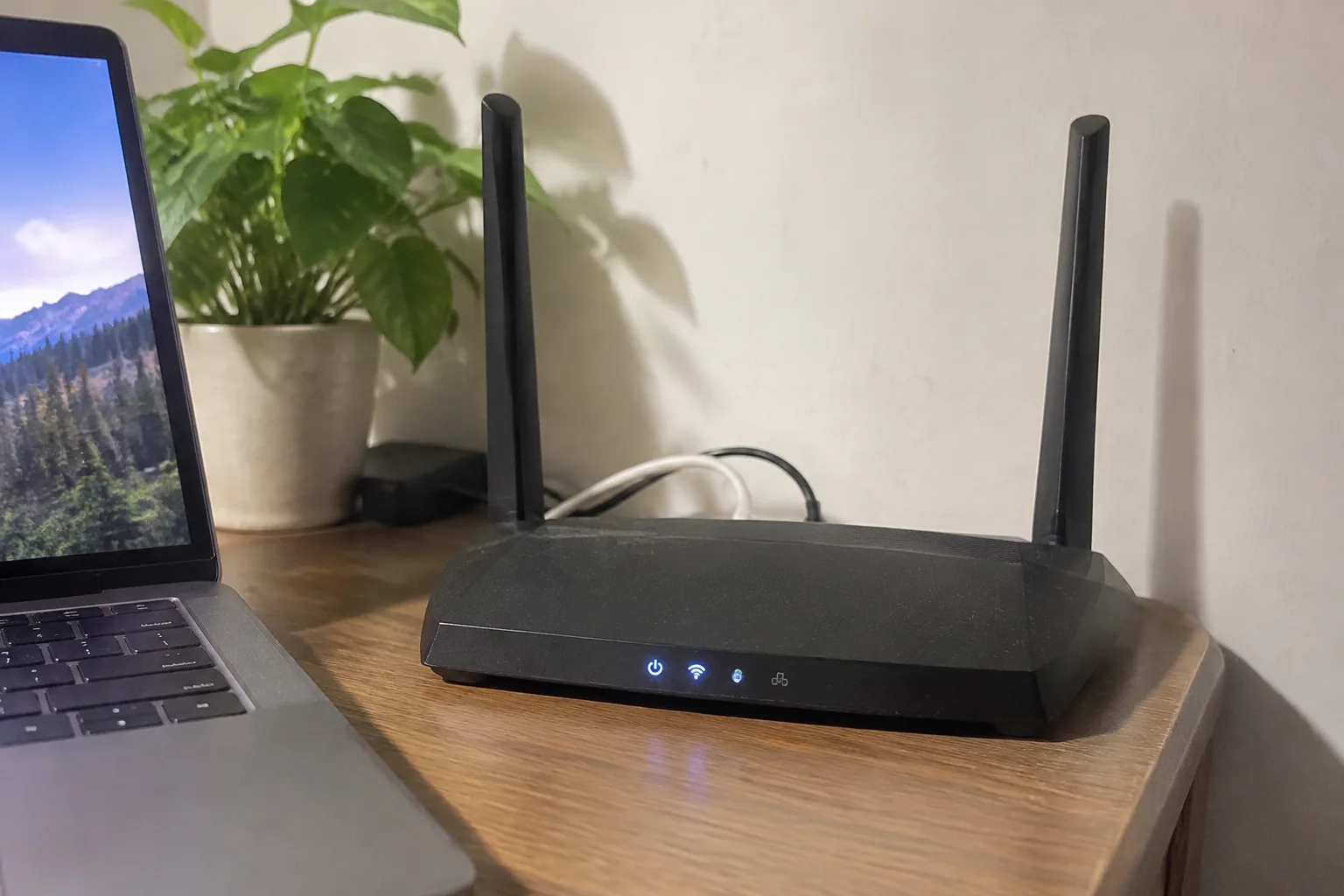
A home router with a VPN client baked into its firmware does something no app on a laptop or phone can: it moves the encryption boundary to the front door. Every device behind that router, from the smart thermostat to the work laptop to the tablet a child uses for homework, passes through the tunnel whether or not anyone remembered to launch a piece of software. That is the whole appeal, and it is also the source of the trouble. The setup is not hard in the way that rebuilding a carburetor is hard. It is fiddly, brand-dependent, and full of traps that do not announce themselves until a streaming service starts throwing error codes.
Most people who attempt this will discover that the router they already own cannot do it. That is the first real fact to absorb. Consumer routers ship with a small menu of built-in VPN options, and the ones that support it usually support only a narrow slice: either they act as a VPN server so a person can dial in from a hotel, or they run a client that connects out to a commercial VPN provider. The second is what nearly everyone wants. The first is a different project entirely and gets confused with it constantly.
The router has to be able to run the client
Firmware is the dividing line. Stock firmware from the major networking brands tends to be locked down and sparse. Some models from Asus, Netgear, and a handful of others include a VPN client tab that accepts an OpenVPN configuration file, and that is the easiest path available. Others support only PPTP, a protocol so old and broken that using it is roughly equivalent to leaving the front door open with a sign taped to it.
The alternative is flashing third-party firmware. OpenWrt and DD-WRT are the two names that come up, and both turn a capable router into something far more flexible at the cost of an afternoon and a real risk of bricking the hardware if the wrong image goes on. The router's exact model number and hardware revision matter here. Two routers in identical plastic shells can carry different chips and need different firmware files. Reading the label on the bottom before downloading anything is not optional.
There is a third path that avoids the whole mess: buying a router with VPN client support already built in. Travel routers from GL.iNet are the usual recommendation because they ship with OpenVPN and WireGuard support out of the box and cost less than a nice dinner. The tradeoff is throughput. A small travel router will choke on a fast fiber connection, capping the whole house at whatever the little processor can encrypt.
Picking a protocol changes what the connection can do
OpenVPN is the safe, widely supported choice. It works with nearly every commercial provider, tunnels through restrictive networks, and has been audited enough that its reputation is earned. It is also slow relative to newer options, and on router hardware the CPU overhead is real. A router that pushes 900 megabits per second on a normal connection might cap out at 80 or 100 once OpenVPN is running, because the encryption happens in software on a modest processor.
WireGuard is the modern alternative. It is dramatically faster, uses far less CPU, and reconnects almost instantly when a connection drops. The catch is provider support. Not every commercial VPN offers WireGuard configs, and the ones that do sometimes bury the configuration file behind a support page. When it is available, it is the better choice for a router, because the hardware limitation that makes OpenVPN painful largely disappears.
IKEv2 sits somewhere in between. It is fast and stable, common on mobile devices, and supported by a subset of providers. On a router, its main virtue is that it survives network changes gracefully, which matters less for a stationary home connection than it does for a phone hopping between Wi-Fi and cellular.
The configuration file is the whole job
Once the router supports a client and a protocol is chosen, the actual setup comes down to a file. Commercial VPN providers generate an OpenVPN configuration file, usually a .ovpn file, from the account dashboard. That file contains the server address, the certificates, and the settings needed to establish the tunnel. Downloading it, opening it in a text editor to confirm it points at a server in the desired country, and uploading it to the router through the admin interface is the core of the task.
WireGuard works the same way with a different file format. The provider generates a configuration that includes a private key, a public key, an endpoint, and an allowed IP range. The router imports it. The private key is sensitive, and pasting it into a router admin page that is still using the factory default password is a bad combination.
Credentials are the other half. Most providers require a username and password alongside the certificate, and some use a separate set of credentials generated specifically for manual configuration. Using the main account login instead of these dedicated credentials is one of the most common reasons a connection attempt fails with an authentication error that gives no useful explanation.
What breaks after the tunnel comes up
The tunnel establishes, the router reports connected, and then the complaints begin. Streaming services detect that traffic is arriving from a data center and block it. Banking apps flag the login as suspicious. A work laptop with its own corporate VPN refuses to connect because it is trying to tunnel inside a tunnel, which rarely works cleanly.
Split tunneling is the fix for some of this. Most routers that support a VPN client also support routing only certain devices or certain destination addresses through the tunnel while everything else goes direct. Sending the smart TV through the tunnel while leaving the work laptop on the normal connection solves the streaming and the corporate conflict at once, though it requires knowing which device has which IP address and configuring rules per device. The menu for this varies wildly between firmware versions and is often poorly labeled.
DNS is the quieter failure. A VPN tunnel that carries traffic but leaks DNS requests to the local internet provider undermines much of the point. Some routers handle DNS through the tunnel automatically; others need the DNS server set manually to an address the VPN provider specifies. Checking for leaks after setup is worth the ten minutes it takes, because a leak does not produce any visible symptom during normal browsing.
The router admin password is now a security boundary
Here is the part that gets skipped. The router is now the single point through which all encrypted traffic flows, and its admin interface is the control panel for that tunnel. If the admin password is still "admin" or printed on a sticker on the back, anyone on the local network can log in, read the VPN credentials, change the server, or simply turn the tunnel off. The stakes went up when the VPN went in.
Remote administration should be off. Universal Plug and Play should probably be off too, since it has a long history of being abused. The firmware should be current, because router firmware vulnerabilities are a recurring problem and the fix is usually a simple update that most people never apply. These are ordinary router hygiene steps, but they matter more once the router is holding VPN keys.
The speed cost is real and worth measuring
Before the setup, running a speed test on the normal connection gives a baseline. After the tunnel is up, running the same test shows what the encryption is costing. On older or cheaper hardware running OpenVPN, the drop can be severe enough to make the whole project feel like a mistake. On a router with a faster processor, or with WireGuard, the loss is often modest enough to forget about.
If the drop is unacceptable, the options are limited. Flashing OpenWrt sometimes helps because it can use hardware acceleration that stock firmware leaves idle. Switching to WireGuard helps more. Buying a router with a faster CPU helps most, and it is the honest answer for anyone with a gigabit connection who wants the tunnel to keep up.
A small travel router and a spare afternoon
The path of least resistance for most households is a small dedicated router with VPN support already in the firmware, configured once and left alone. It sits between the modem and the main router, or replaces the main router if the connection is modest. The configuration file gets imported, split tunneling gets set up for the devices that need to bypass the tunnel, and the admin password gets changed to something long. The whole thing takes an afternoon and then disappears into the background, which is the highest compliment a piece of network gear can receive.
The larger routers with built-in client support are worth the money if the connection is fast and the household is large, but the setup is where the time goes. Reading the manual for the specific model, confirming the firmware version supports the protocol, and testing for DNS leaks afterward are the steps that separate a working tunnel from a router that merely claims to have one. The encryption boundary at the front door only helps if it is actually closed.