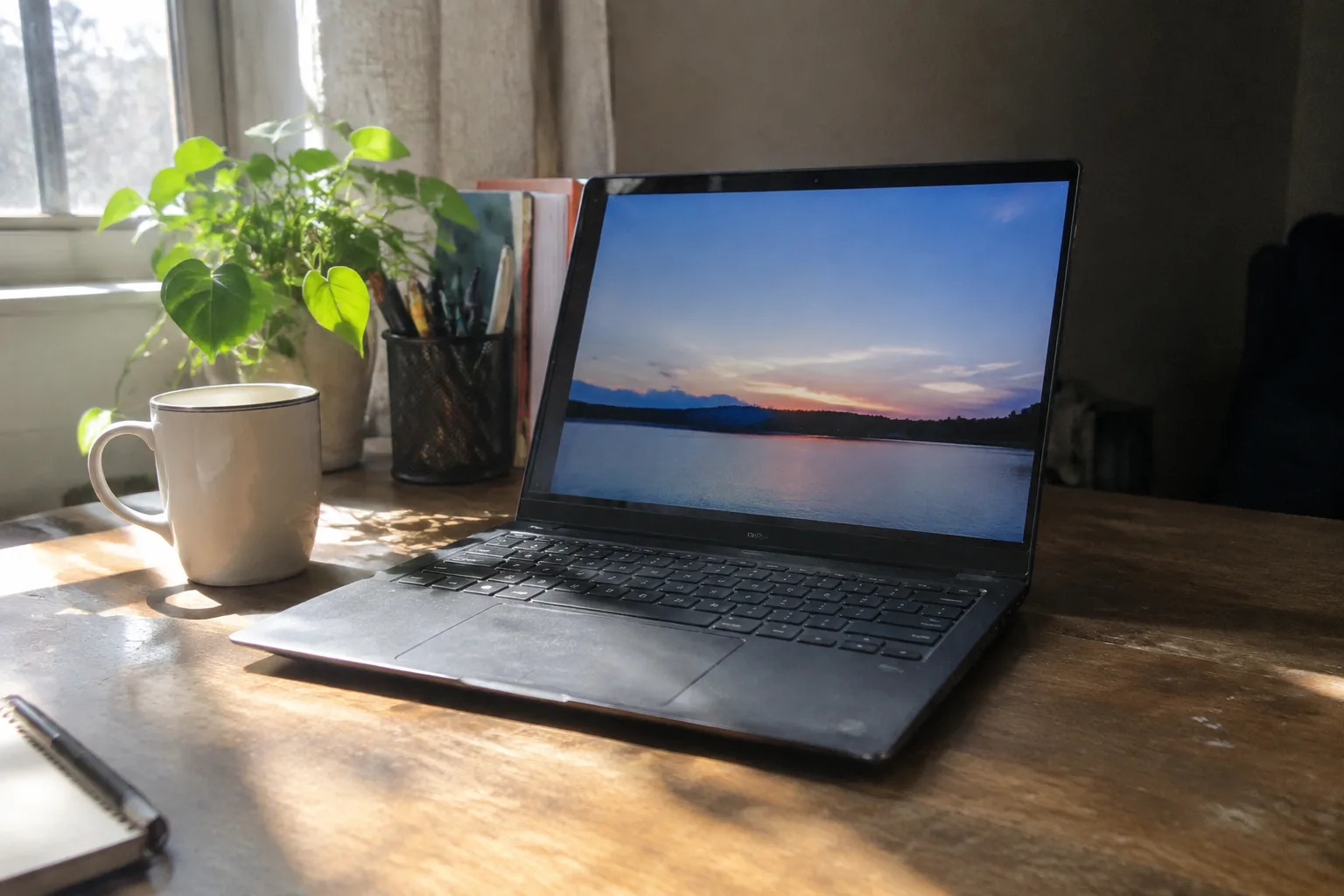
A laptop for a parent or grandparent who checks email, reads the news, video-calls the family, and maybe does a little online banking does not need much. That is the whole premise, and it is worth stating plainly because the market does everything it can to bury it. Walk into any electronics aisle and the machines on display are built for people editing video, compiling code, or running three dozen browser tabs while a game renders in the background. A shopper who wants to send a birthday photo to a grandchild gets pushed toward a thousand-dollar machine with a fan that sounds like a hair dryer.
Most of that power goes unused. The real requirements for this kind of buyer are smaller and more specific: a screen that can be read without squinting, a keyboard that does not fight back, a trackpad that responds to a shaky hand, a battery that survives a day unplugged, and an operating system that does not rearrange itself every few months. Get those right and the rest is noise.
The case for buying less laptop than feels comfortable
There is a habit among well-meaning adult children of overbuying. The reasoning runs: if it costs more, it must last longer and cause fewer problems. The opposite often happens. A premium machine with a high-resolution screen and a discrete graphics chip runs hotter, drains faster, and ships with more software that needs updating. Complexity scales with price in ways that rarely help the person who just wants to read a recipe.
A modest laptop, chosen well, is easier to learn, cheaper to replace, and less likely to develop a fault that requires a trip to a service center. The sweet spot for this audience sits roughly between 300 and 600 dollars, occasionally a little higher for a particularly good screen. Above that, the buyer is paying for capabilities that will never be touched.
Screen size: 15 inches is the honest answer
Thirteen-inch laptops photograph beautifully and fit in a tote bag. They are also a poor match for aging eyes. Text at default scaling on a 13-inch panel is small, and while the operating system can enlarge it, doing so eats the screen real estate that made the small size appealing in the first place.
A 15.6-inch display gives more room for large text, a wider spreadsheet, and a video call window that does not feel cramped. The trade-off is weight, typically around 3.5 to 4 pounds, which matters only if the machine leaves the house. For a laptop that lives on a kitchen table and moves to a couch, that extra pound is invisible.
Resolution deserves a brief note. A standard 1920 by 1080 panel is plenty. Higher-density screens look sharper but can make interface elements tiny unless scaling is adjusted, and that adjustment is exactly the kind of setting that confuses a first-time user. The plainer panel is the kinder choice.
Keyboard, trackpad, and the small frictions that decide everything
Specifications get the attention, but the daily experience of a laptop comes down to the parts a person touches. A keyboard with shallow travel and mushy keys makes typing an email feel like work. A trackpad that misreads a slow drag turns highlighting a sentence into a small ordeal. These details never appear on a spec sheet, and they determine whether the machine gets used or resented.
The fix is unglamorous: try the keyboard before buying, or buy from a retailer with a generous return window. Backlit keys help more than expected, particularly for anyone reading in a dim living room. A trackpad with physical click feedback tends to suit older hands better than a haptic pad that simulates the click, since the physical travel gives clearer confirmation that a press registered.
One more friction worth naming: ports. A laptop with only two USB-C slots forces a hub into the picture, and a hub is one more thing to lose. A machine with a full-size USB-A port, an HDMI output, and a headphone jack removes three potential support calls before they happen.
Where Windows and macOS each cause trouble
The operating system question is the one most likely to start an argument at the dinner table. Windows is the default in most of the world, which means more people nearby who can help, more repair shops, and lower prices. It also means more prompts, more update nags, and a Start menu that Microsoft keeps rearranging. Recent versions have added more advertising and account requirements, which frustrates users who remember when the computer simply turned on.
macOS is calmer and more consistent, and the hardware tends to be excellent. The cost is higher, and the ecosystem is less forgiving of older peripherals. A printer from 2014 may simply not work. For a household already using iPhones and iPads, the continuity features are genuinely useful, and FaceTime calls land without setup.
The deciding factor is usually support, not software. Whichever system the family already knows is the right one. A switch between platforms costs weeks of small confusions, and the benefit rarely justifies it.
Do not overlook the Chromebook
For a buyer whose entire digital life fits inside a browser, a Chromebook is the most sensible machine on the shelf. It boots in seconds, updates quietly in the background, resists most malware by design, and costs a fraction of a Windows laptop. A 15-inch Chromebook with a decent screen and a full keyboard can be had for well under 400 dollars.
The limits are real. No full Microsoft Office, though the web version covers most needs. No installing traditional desktop software. Printing can be fussy with older printers. For someone who mostly reads, writes, watches, and video-calls, none of that matters. For someone who has used a specific tax program for fifteen years, it does.
Chromebooks also tend to have the simplest setup of any laptop. Sign in with a Google account and the machine is ready. That single step eliminates a long list of questions that a Windows first boot tends to raise.
Battery life matters more than processor speed
A laptop that needs charging every three hours creates a small, recurring anxiety. The charger becomes something to remember, the outlet becomes something to hunt for, and the machine gets left behind on the counter more often. A model that runs eight to ten hours on a charge disappears into the background of daily life in the best way.
Battery life tracks more closely with processor class than with price. The low-power chips from Intel, AMD, and Apple all stretch a charge well beyond what a high-performance chip manages, and they run cooler, which means no fan noise during a quiet phone call. A modest chip is the efficient choice here as well as the cheap one.
Three specific machines worth a look
The Acer Aspire 3 in its 15-inch configuration sits near the bottom of the price range and covers the basics without drama. The screen is unremarkable, the plastic case flexes, and the battery is merely adequate. It also costs less than a nice dinner for four, runs Windows, and handles email, browsing, and video calls without complaint. For a buyer who wants a straightforward machine and does not want to think about it again, this is a reasonable answer.
The Lenovo IdeaPad line offers a step up in keyboard quality and build, usually for a modest premium. The keys have more travel and a firmer bottom, and the trackpad responds more reliably to slow gestures. Battery life tends to land in the eight-hour range. It is the machine to consider when the buyer types a fair amount and the keyboard friction would otherwise become a daily irritant.
The Apple MacBook Air with the base M-series chip is the expensive option, and for a household already inside Apple's ecosystem it is the easiest recommendation on this list. The screen is bright and sharp, the trackpad is the best in the business, and the machine runs silent and cool. The price is roughly double the Windows options, and the value depends entirely on whether the continuity features will be used. For a household that lives in iMessage and FaceTime, they will be.
The setup work that outlasts the purchase
The laptop is the easy part. The harder work happens in the first hour after it comes out of the box, and it is the work that determines whether the machine gets used or sits in a drawer. Enlarge the text. Increase the cursor size. Set the display scaling so menus are readable at arm's length. Turn off the notifications that pop up from the corner. Pin the four or five websites that actually get visited to the taskbar or dock.
Then write it down. A short note taped inside a drawer or kept in a wallet, listing the password, the Wi-Fi network name, and the one phone number to call when something goes wrong, prevents a surprising share of small crises. The machine that gets used is the one that has been set up to fit its owner, and that setup is a gift worth more than any specification on the box.