Two-factor authentication has a plumbing problem. The second factor, the one-time code that proves a person is who the password says, has to live somewhere: a phone, a hardware key, a printed list of backup codes in a drawer. Most people put it on the phone, which means the phone becomes both the thing that proves identity and the thing that can be lost, stolen, or wiped. A password manager changes that arrangement. It can hold the password and generate the second factor in the same vault, and it can do so without turning the phone into a single point of failure.
The catch is that the setup is finicky in ways the marketing pages rarely admit. The steps differ by manager, by site, and by whether the site calls its second factor "authenticator app" or "security key" or "two-step verification" or something else entirely. What follows is a walk-through of the actual mechanics, with the snags named.
What a password manager can and cannot hold as a second factor
Password managers increasingly store two kinds of second-factor secrets. The first is the TOTP seed, the long string of letters and digits that a site displays as a QR code when two-factor is first turned on. The manager reads that seed and generates the rolling six-digit code, the same one an authenticator app would produce. The second is a passkey, a cryptographic credential tied to the site and unlocked by the manager itself.
What a manager cannot hold is a physical security key. A YubiKey or similar device is a separate object, and the whole point is that it stays separate. A manager can record that a key exists and where it is kept, but the key does the work. That distinction matters because the strongest setups combine both: a passkey or TOTP code inside the vault, plus a hardware key as the fallback for the account that unlocks the vault.
The order of operations is where most people get stuck. If the manager holds both factors, then the manager becomes the second factor. The account that protects the manager must therefore be protected by something the manager does not hold. A person who stores the password and the TOTP seed for the same login inside the same vault has not added a second factor; that person has added a second step.
The seed is not the same as the backup codes
When a site turns on two-factor, it typically shows two things: a QR code and a short list of recovery codes. The QR code contains the TOTP seed. The recovery codes are one-time passwords for the day the phone or the vault is gone. These are not interchangeable, and conflating them is the most common setup error.
The seed belongs in the manager, because the manager regenerates codes from it. The recovery codes belong somewhere else entirely: a printed sheet, a sealed envelope, a safe. Putting recovery codes inside the same vault that holds the seed defeats their purpose, since a person locked out of the vault cannot reach them. A printed sheet in a desk drawer is unglamorous and works.
Some sites, frustratingly, show the QR code only once and never again. If the seed is not captured at that moment, the only way to get a new one is to disable two-factor and start over. This is worth knowing before clicking through the confirmation screen too quickly.
Scanning the QR code from inside a vault
Most desktop password managers have a field labeled something like "one-time password" or "TOTP" inside each login entry. The workflow runs in one of two directions. On a phone, the manager's camera can scan the QR code the site displays on a laptop screen, and the seed lands in the matching entry. On a desktop, the manager can often read a screenshot of the QR code, or accept the long alphanumeric string that sites tuck behind a "can't scan?" link.
That alphanumeric string is the more reliable path. It is usually formatted in groups of four, uses uppercase letters and digits, and is often labeled "manual entry key" or "setup key." Copying it into the manager avoids the camera glare, the focus hunting, and the occasional QR code that the manager's scanner simply refuses to parse. The string is also easier to verify character by character, which matters because a single wrong character produces codes that never work and no error message that explains why.
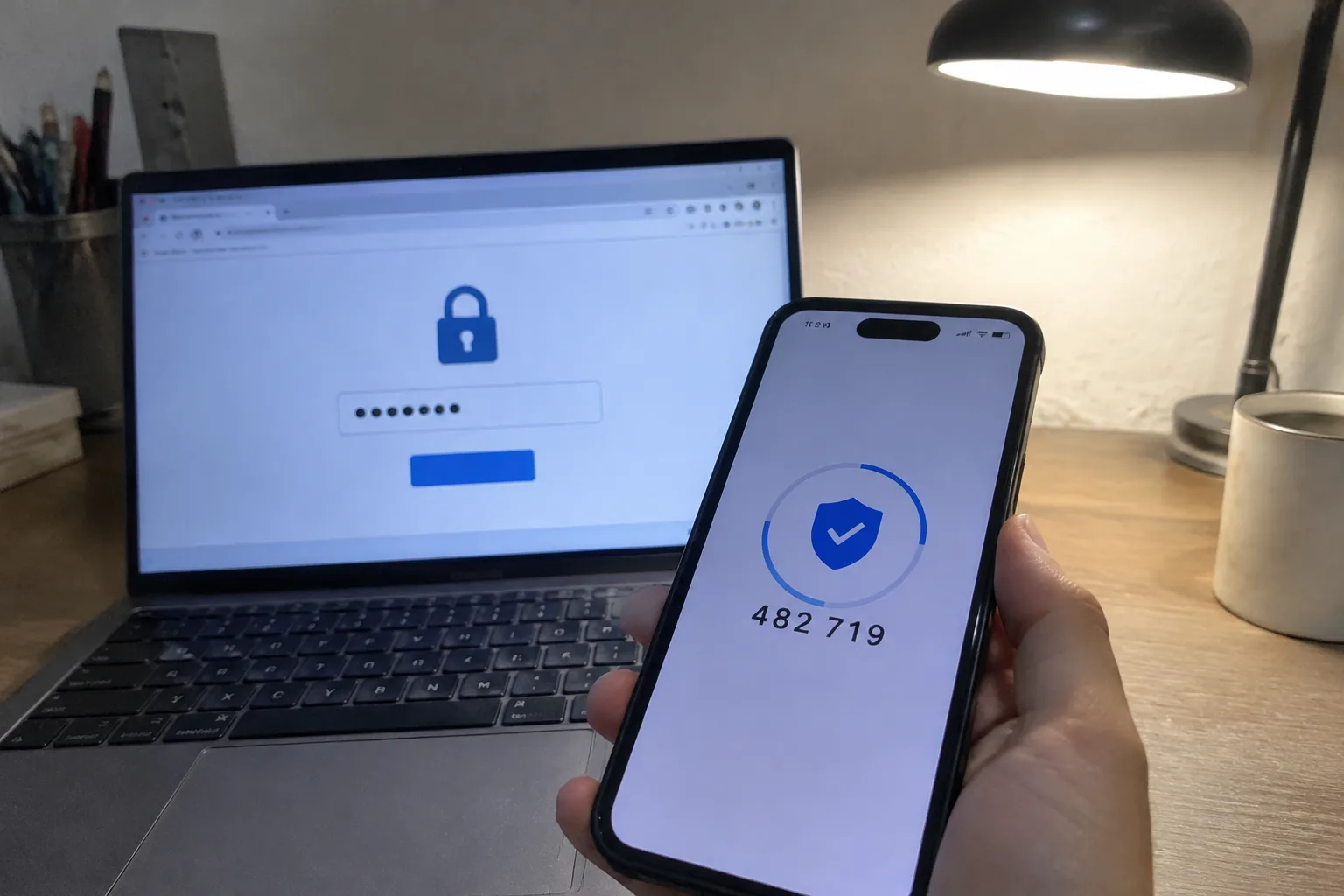
After the seed is stored, the manager displays a rolling code that refreshes every thirty seconds. The site will ask for one code to confirm the setup worked. If the code is rejected, the seed was almost certainly mistyped, and the fix is to delete the entry and re-enter the string rather than to keep generating fresh codes from a bad seed.
The thirty-second window and the clock drift problem
TOTP codes are derived from the current time, which means the device generating the code and the server checking it have to agree on what time it is. They usually do. When they do not, codes fail in a way that looks like a wrong password but is actually a clock that has drifted a minute or two.
Phone clocks sync automatically, so drift is rare there. Desktop clocks drift more often, especially on machines that sleep for long stretches or sit on networks that block the time servers. A person who finds that codes from the desktop manager work sometimes and fail other times should check the system clock before assuming the seed is bad. The same applies to a manager running on a device that has been offline for weeks.
The practical habit is to enter the code as soon as it appears, not to copy it and finish a sentence first. A code generated at the twenty-eight-second mark of its window has two seconds of life left. The refresh is visible in most managers, and glancing at it before typing saves a rejected code and a confused retry.
Sites that refuse to accept a manager-generated code
A small but irritating set of sites will not accept codes from a manager at all. Some reject any code that arrives without a recognizable authenticator app signature. Others enforce a delay between generating the seed and using the first code, a wait that managers do not always handle gracefully because they start counting from the moment the seed is stored. A few banking sites and government portals are the usual offenders.
When a site refuses a manager code repeatedly and the seed has been verified, the fallback is a dedicated authenticator app for that one account, or a hardware key if the site supports one. Fighting a stubborn site for an hour is rarely worth it. The goal is a working second factor, not a perfectly consolidated vault.
Protecting the vault with a key, not a code
Here is where the design has to be deliberate. If the vault holds the TOTP seeds for most accounts, then the vault password alone is no longer enough to protect those accounts. Someone who obtains the vault password has both factors. The vault needs its own second factor, and that factor must live outside the vault.
Two options are common. The first is a hardware security key registered to the manager account, so unlocking the vault requires the password plus a tap on the key. The second is a TOTP seed for the manager account stored in a separate authenticator app on a phone, which keeps the vault's second factor out of the vault. Both work. The hardware key is more resistant to phishing; the phone app is cheaper and harder to leave in a laptop bag.
What does not work is storing the manager account's own TOTP seed inside the manager. That is the loop that looks like security and is not, and it is the single most common mistake in this whole exercise.
A short list of accounts that should not share a vault
Not every second factor belongs in the same place. The email account that receives password resets deserves its own arrangement: a hardware key, or a TOTP seed in a separate app, so that a compromise of the main vault does not hand over the reset channel for every other account. The same goes for the password manager's own login and for the primary bank account.
This is a deliberate inefficiency. It means two apps and a key instead of one tidy vault. The payoff is that a single breach does not cascade. A vault is a convenience, and convenience concentrated in one place is exactly what an attacker wants to find.
The printed sheet that outlives the phone
Every setup here eventually depends on a recovery path. Phones get dropped in lakes. Laptops get stolen. Hardware keys get left in the wrong bag. The recovery codes printed at setup, stored away from the vault and the phone, are the thing that turns a disaster into an inconvenience.
Print them. Fold them. Put them somewhere a person would actually look in a panic, and note on the sheet which accounts they belong to. A sheet of unlabeled recovery codes is a puzzle; a labeled one is a lifeline. The whole two-factor arrangement is only as good as the day it fails, and that day is the one the printed sheet was for.