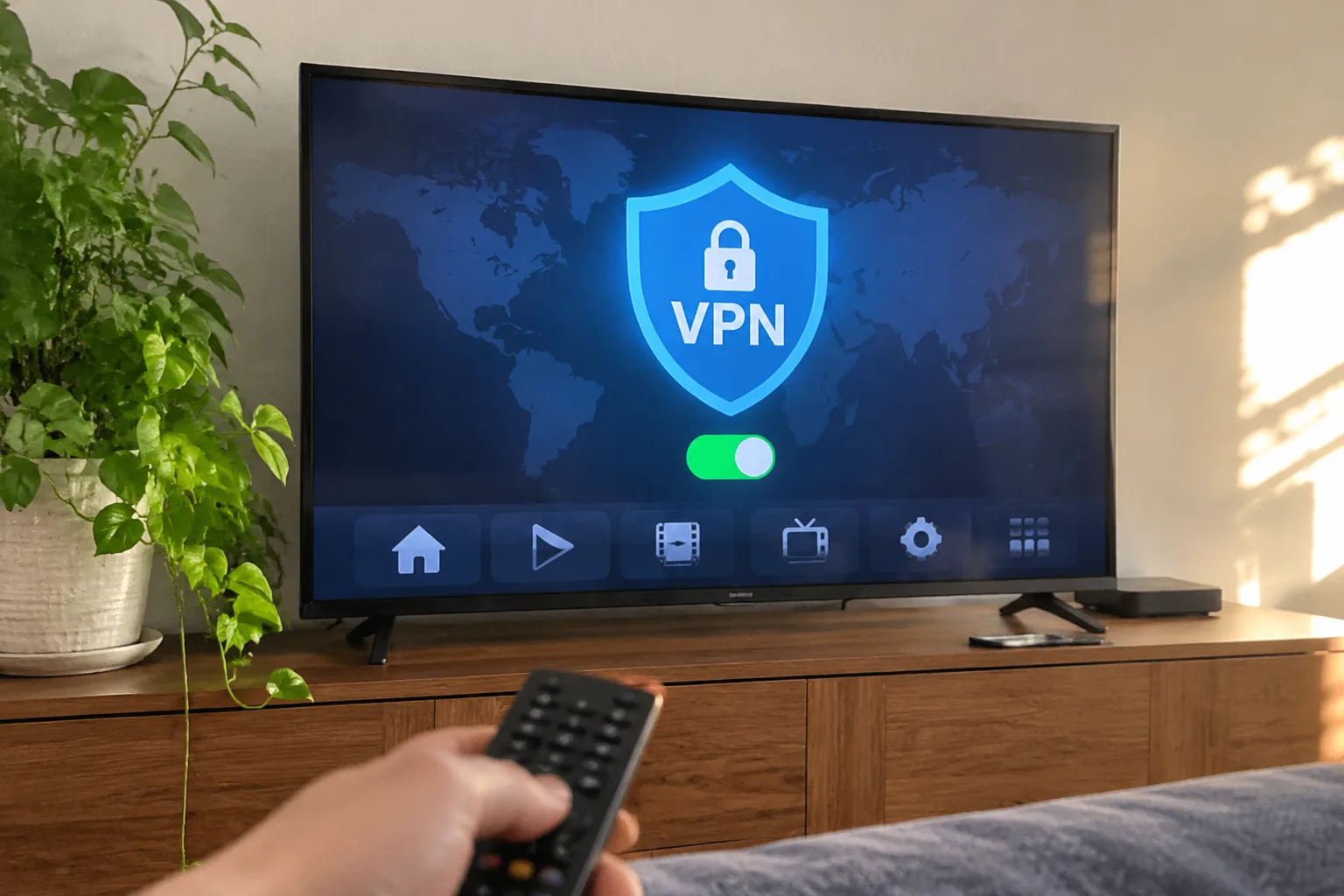
Almost every smart TV sold in the past five years has the same quiet problem baked into its network stack. The TV itself has no VPN client. There is no app store entry called "VPN," no settings toggle buried three menus deep, no subscription prompt. The set will happily connect to Netflix and to a streaming DNS, and that is roughly the end of what it can do on its own.
That limitation is not a bug the manufacturers forgot to patch. It is a structural fact of how these devices are built, and it explains why the search for a smart TV VPN almost always sends people into one of four or five workarounds. Some of those workarounds are clean. Some are clumsy. One of them is actively bad for the television.
The job is worth doing carefully, because a TV is the one screen in the house where a bad network decision gets watched for two hours at a time. A hiccup on a laptop is an annoyance. A hiccup on the living room set is an evening.
Why the TV Itself Cannot Run a VPN
Smart TV operating systems are closed and trimmed down. Samsung's Tizen, LG's webOS, Roku OS, and the various Android TV builds all restrict what can be installed, and none of them ships with a native VPN client. A few Android TV sets in certain regions allow sideloaded apps, which occasionally means a VPN app can be forced onto the device. That path is fragile, version-dependent, and outside the scope of a normal household setup.
The practical consequence is that the VPN has to live somewhere else on the network and hand its protection to the TV from the outside. Everything that follows is a variation on that single idea.
Router-Level VPN: The Cleanest Option for a Fixed Set
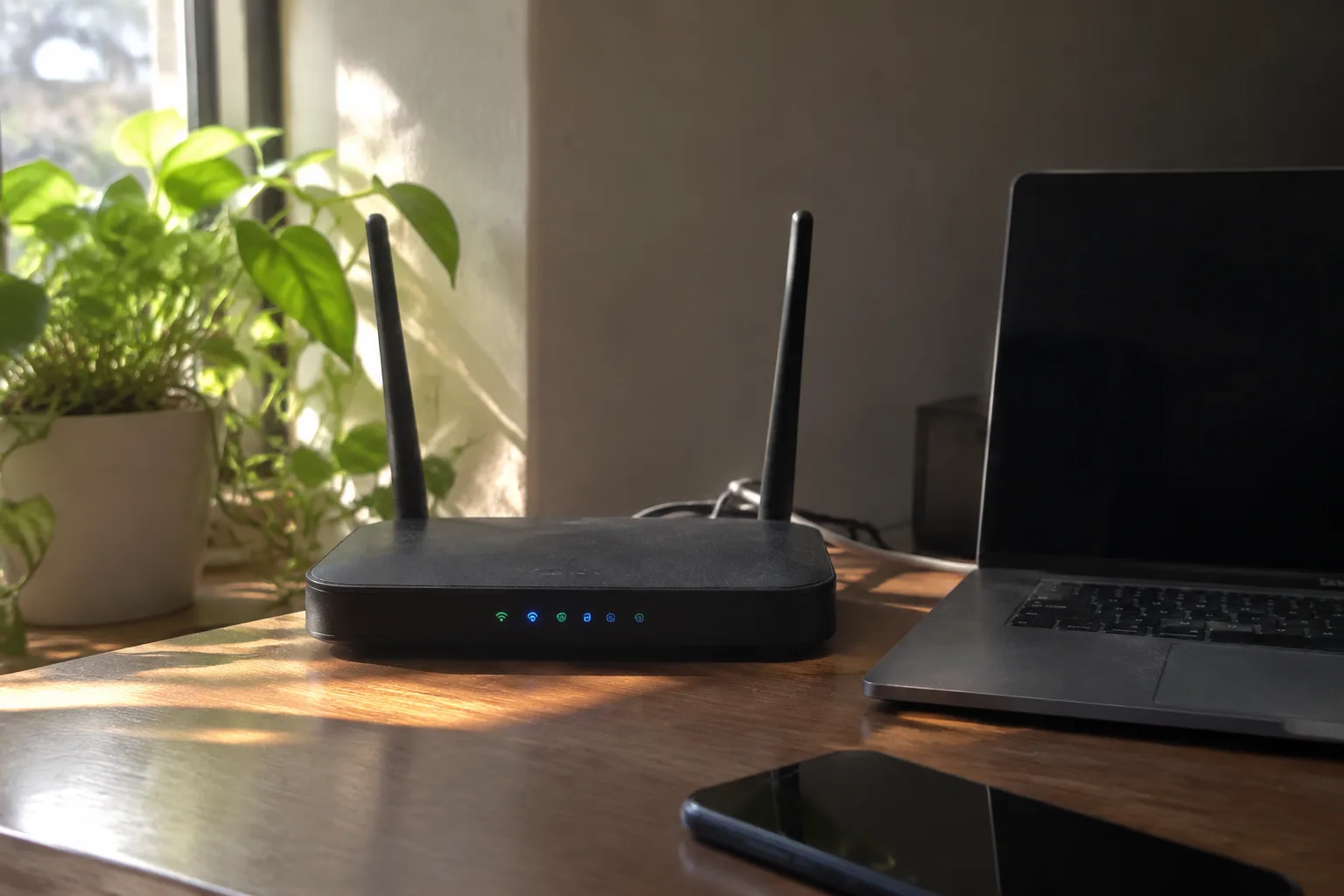
The most durable setup puts the VPN on the router, so every device on the home network inherits it without knowing or caring. The TV connects to Wi-Fi as usual, and the traffic is tunneled before it ever leaves the house.
The catch is hardware. Most routers shipped by internet providers cannot run a VPN client. The feature tends to appear on midrange and upper-tier routers from Asus, Netgear, and similar brands, and often only with specific firmware. A router that supports OpenVPN or WireGuard client mode is the prerequisite; a router that merely supports VPN passthrough is not the same thing and will not do the job.
Configuration is done once, in the router's admin page, usually by importing a configuration file supplied by the VPN provider. After that the tunnel runs continuously. The living room TV, the kitchen tablet, and the phone on the couch all sit behind it.
There is a real cost to this approach. Routing the whole house through a single VPN server adds latency to every device, and streaming services are aggressive about detecting and blocking known VPN addresses. A router-wide tunnel can also break local things that depend on the home IP, such as a printer or a network drive. Some routers offer split tunneling to send only selected devices through the VPN, which solves most of this, but the feature is not universal.
A Travel Router as a Dedicated Tunnel for the Television
For households that do not want to replace the main router, a small travel router sitting between the TV and the home network is a tidy compromise. The setup looks like this: the travel router connects to the home Wi-Fi as a client, runs the VPN, and broadcasts its own separate Wi-Fi network. The TV joins that second network.
The advantage is isolation. Only the television is tunneled. The rest of the house keeps its normal connection. If the VPN drops, the TV loses its route and the other devices are unaffected.
A $30 to $60 travel router from GL.iNet or a comparable brand is enough for this. It is a slightly inelegant solution, a second little box with a second little power adapter, but it is the option that asks the least of the existing network and the least of the person setting it up.
The Hotspot Trick and Its Hidden Bill
The simplest workaround in circulation is to run the VPN on a phone, turn the phone into a Wi-Fi hotspot, and connect the TV to that hotspot. It works. It requires no new hardware and no router configuration.
It also burns through mobile data at a rate that surprises people. An hour of high-definition streaming runs roughly 1 to 3 gigabytes, and a 4K stream can push past 7 gigabytes per hour. A single evening of television can exhaust a monthly data allowance. The hotspot also ties up the phone, drains its battery, and adds a layer of instability that shows up as buffering during the exact scene that matters.
This method is fine for a one-off, a test, or a temporary stay. It is a poor permanent arrangement.
Casting from a Laptop or Phone That Already Runs the VPN
Another route sidesteps the TV entirely. If a laptop or phone already has a VPN client running, content can be cast or mirrored to the television through AirPlay, Chromecast, or Miracast. The TV becomes a display and never touches the network path in question.
This works well for a browser tab or a personal media file. It falls apart for native streaming apps, because the app on the phone or laptop still negotiates playback with the service, and casting a protected stream often produces a black screen or a refusal. The mirroring also has to stay awake, and the device running it is unavailable for anything else.
Treat casting as a useful fallback for specific content, not as a way to run the TV's own apps through a tunnel.
DNS Settings Are Not a VPN
A persistent piece of confusion deserves its own paragraph. Changing the TV's DNS server to a smart DNS provider is sometimes presented as a VPN alternative. The two are unrelated. DNS only changes how domain names resolve. It does not encrypt traffic, does not hide the public IP address, and does not create a tunnel. A smart DNS service may help with region-locked catalogs, but it offers none of the privacy properties of a VPN, and it does not accomplish what a VPN accomplishes.
Picking a Provider That Tolerates Streaming
Not every VPN works for this purpose, and the difference is not subtle. Streaming platforms maintain blocklists of VPN server addresses, and a provider that works fine for ordinary browsing may be blocked outright by the major services. The providers that invest in keeping streaming functional tend to advertise it explicitly, and they tend to be the larger paid services rather than the free ones.
Free VPNs are a bad fit here for a second reason. They cap bandwidth, which is fatal for video, and many of them monetize by logging and selling traffic data, which defeats the entire point of running a tunnel. A paid subscription in the range of a few dollars a month is the realistic floor for a setup that has to carry a household's television traffic.
Speed matters as much as unblocking. A server across an ocean adds latency, and a smart TV has less tolerance for jitter than a laptop. Choosing a server in a nearby country, or one the provider marks as optimized for streaming, makes the difference between a smooth picture and a stuttering one.
What the Setup Actually Buys, and What It Does Not
A working tunnel on the television hides the household's public IP address from the streaming service and from the internet provider. It encrypts the traffic between the TV and the VPN server. For a viewer who wants the set to appear to be in another country, or who wants the provider to see only an encrypted stream, that is the whole benefit.
It does not make the television anonymous. The streaming account is still logged in, the payment method is still on file, and the service still knows exactly who is watching what. A VPN changes the network path, not the identity attached to the account.
It also does not guarantee access. Services that block VPNs update their lists continuously, and a server that works in January can be blocked by March. The setup is a moving target, and anyone running it should expect to switch server locations now and then.
A Sensible Order of Operations
For a household with a fixed television and an ordinary router, the sequence that causes the least grief is this: check whether the existing router supports a VPN client, and if it does, use it with split tunneling enabled for the TV alone. If it does not, buy a small travel router, dedicate it to the television, and leave the main network untouched. Keep the hotspot trick for travel and the casting trick for one-off content.
The order matters because the router-level solution is the only one that requires no extra hardware on the shelf and no second network to maintain. When it is available, it is worth the hour of configuration. When it is not, the travel router is the next-best thing, and the television ends up with a stable tunnel that survives router reboots and does not depend on a phone staying awake in the other room.