Seagate and Western Digital ship roughly the same drives inside their external enclosures, and both companies offer free backup tools that will copy a folder from one disk to another. The hard part of choosing backup software for a home PC has never been the copying. It is everything around the copying: knowing what got copied, knowing it can be restored, and knowing the copy will still open in five years when the laptop that made it is long gone.
Most people who ask about backup software are actually asking a narrower question. They want to know which program to install so the photos, the tax returns, and the half-finished novel survive a dead SSD. The answer depends less on brand names than on three plain facts: how much data needs saving, how much fiddling the household will tolerate, and what failure is being guarded against. A ransomware infection, a dropped external drive, and a flooded basement demand different software.
Three jobs that get bundled under one word
Backup software for a home PC splits into three jobs that marketing tends to blur. The first is file sync: a folder on the desktop mirrors to a folder on an external disk or a cloud account. Dropbox, OneDrive, and Google Drive all do this well, and they are often mistaken for backup because the result looks similar. The second is image backup: a program takes a snapshot of the entire drive, operating system and all, so a failed machine can be restored to a working state without reinstalling Windows. The third is versioned archiving: a tool keeps multiple dated copies of files so an older draft or a pre-infection version can be pulled back.
Sync is not backup. A sync tool faithfully copies a deletion or an encrypted file to every location it touches within seconds. Someone who deletes a wedding folder by accident and waits for the sync to finish has lost the wedding folder everywhere at once. This is the single most common misunderstanding in home data protection, and it costs people real photographs every year.
The restore test that decides everything
Software should be judged by the restore, not the backup. A backup that has never been restored is a hopeful pile of bytes. Before committing to any program, the useful exercise is to create a test folder with a handful of files, run one backup, then delete the originals and attempt a full recovery from the backup alone. The programs that pass this test cleanly are the ones worth keeping.
Restore quality shows up in small details. Does the software let a single file be pulled from a full image without mounting the whole thing? Does it preserve file dates and folder structure? Can it write the restore to a different drive letter than the original? A tool that restores only to the exact original path is technically functional and practically useless when the original drive has died and the replacement has a different letter.
Free tools that cover most households
Windows ships with File History, which keeps dated copies of files in the Documents, Pictures, and Desktop folders on an external drive. It is unglamorous, it is already installed, and it handles the most common home backup need without a single download. The catch is that File History covers only the folders Microsoft decided to include by default, and adding others requires digging through settings most people never open.
MacOS includes Time Machine, which does the same job more gracefully and with a better restore interface. Plug in an external drive, confirm the prompt, and the machine backs itself up hourly for as long as the drive stays connected. Time Machine also keeps local snapshots on the internal drive, which rescue files deleted between external backups. For a Mac household, Time Machine plus one offsite copy is a complete and free solution.
For image-level backup on Windows, Macrium Reflect Free was the standard recommendation for years. The free edition was discontinued in 2024, and new users now face a paid tier or a hunt for alternatives. AOMEI Backupper Standard and EaseUS Todo Backup Free both offer free image backup with some feature limits, typically around scheduling and cloud destinations. These are workable programs, and the limits tend to matter only to people backing up multiple machines or running frequent scheduled jobs.
Paid software earns its price in scheduling and support
Paid backup software, generally in the range of a modest annual subscription, buys three things: reliable scheduling that survives reboots and sleep, image restore to dissimilar hardware, and a support line when the restore fails at the worst possible moment. Acronis Cyber Protect Home Office and Macrium Reflect Home are the two names that come up most often among people who restore machines for a living. Both cost more than most households expect to pay for a utility, and both have saved enough people from a dead drive that the price is defensible.
The scheduling detail matters more than the feature list suggests. A backup that runs only when someone remembers to plug in a drive is a backup that stops happening around week three. Software that runs on a schedule, sends a quiet notification when a job fails, and survives a laptop going to sleep is worth a subscription on its own. The best backup is the one nobody has to think about.
Cloud backup and the upload arithmetic
Cloud backup services like Backblaze and Carbonite copy the whole machine to remote servers continuously, which protects against fire, theft, and ransomware in one move. The arithmetic is the problem. A home connection with modest upload bandwidth takes days or weeks to seed a first backup of a few hundred gigabytes, and many internet plans cap monthly uploads. Backblaze Personal runs a flat annual fee for unlimited storage, which is generous until the first restore, when downloading several hundred gigabytes over a home connection becomes its own multi-day project.
Cloud backup works best as the second copy, not the only one. An external drive handles the fast local restore; the cloud handles the disaster that takes out the drive and the PC together. Households that skip the local drive and rely entirely on cloud backup tend to discover the restore time problem at the worst moment.
The 3-2-1 rule, translated for a home desk
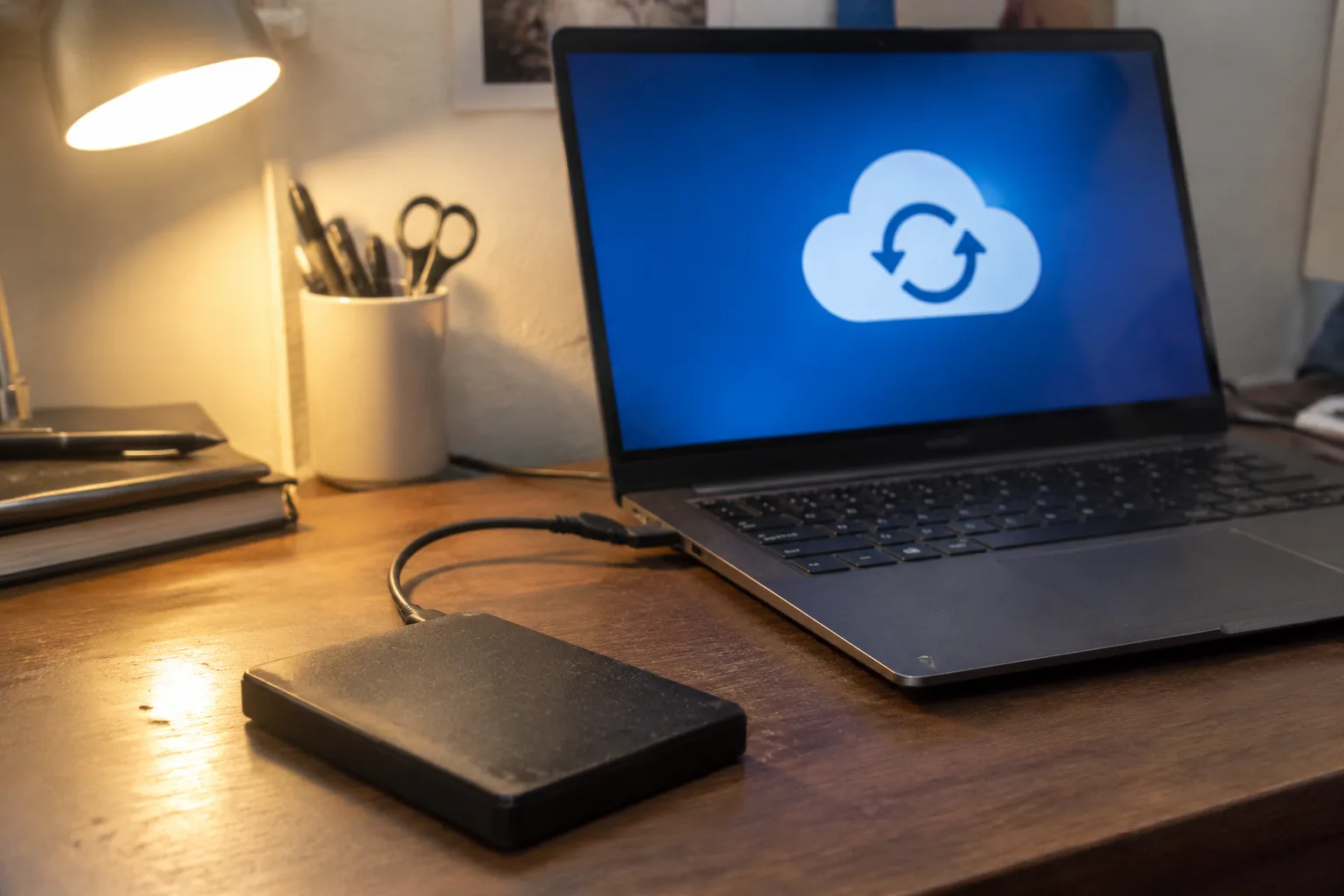
The old 3-2-1 rule says three copies of data, on two different media, with one copy offsite. Translated to a home desk, that means the working files on the PC, a full copy on an external drive kept in the same room, and a second copy either in the cloud or on a drive rotated to another location. The rule survives because it addresses the actual failure modes: drive death, accidental deletion, and a house-level event.
Most home backup software decisions reduce to picking the tool that makes this rotation easy. A program that supports multiple backup destinations, or that can write to a rotating set of external drives, does more for data safety than one with a longer feature list and a single destination. The rotation is the part that saves people, and the software should not fight it.
What to check before paying for anything
Before buying any backup program, three questions are worth answering on paper. Does it support the destination in use, whether that is an external USB drive, a network-attached storage box, or a cloud account? Does it offer a bare-metal restore, meaning it can rebuild a working Windows installation from an image onto a fresh drive? And does it keep versioned copies, so an older file can be recovered after a bad edit or an infection?
A program that answers yes to all three covers the realistic failures a home PC faces. A program that answers yes to only the first is a sync tool wearing a backup label. The distinction is easy to miss in a features page and obvious the first time a restore is attempted.
Encryption and the external drive left in a drawer
Encryption deserves a mention because an external backup drive is a portable copy of everything personal on a machine, and portable drives get lost, stolen from cars, and left in hotel rooms. Most paid backup tools offer AES-256 encryption with a password set at backup time. The password is the weak point. A forgotten password means an unreadable backup, which is its own kind of data loss.
The practical compromise is to encrypt the backup and store the password in a password manager, with a written copy somewhere physically secure. Households with a shared PC should agree on the password before the first backup runs, because a backup that only one person can restore is a backup the household does not really have.
A working setup for a typical household
The configuration that covers the most ground with the least fuss: File History or Time Machine for continuous versioned copies of personal files, an image backup tool running a full disk snapshot once a week to an external drive, and a cloud backup service or a rotated offsite drive for the disaster copy. That is three tools, and the total cost ranges from free to a couple of modest subscriptions, depending on how much automation the household wants.
The software matters less than the habit of testing a restore once or twice a year. A household that runs a restore test in January and again in July will find out about a broken backup while the original files are still intact. A household that never tests finds out at the worst possible moment. The gap between those two outcomes is entirely a matter of whether anyone bothered to click restore before disaster forced the issue.